
Looking for a quick overview of the Google Workspace connection? See the Google Workspace + ColdSend integration page.
Private Infrastructure lets you connect mailboxes through your own Google Cloud OAuth app instead of ColdSend's shared app. You control the credentials, satisfy strict security reviews, and sign every message with your app ID, boosting trust and deliverability.
Step 1: Create a Project in Google Cloud
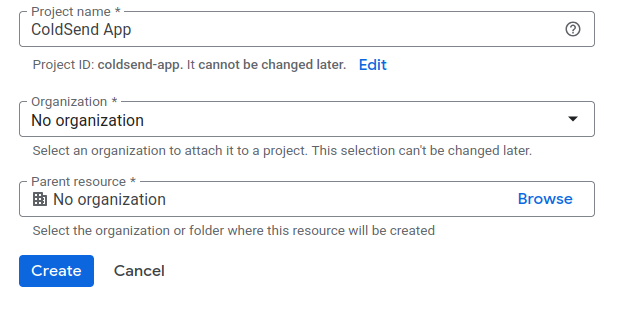
- Go to Google Cloud Console.
- Click the project dropdown on the top bar.
- Click New Project.
- Give your project a name (e.g.,
ColdSend OAuth App) and click Create.
Step 2: Enable the Gmail API
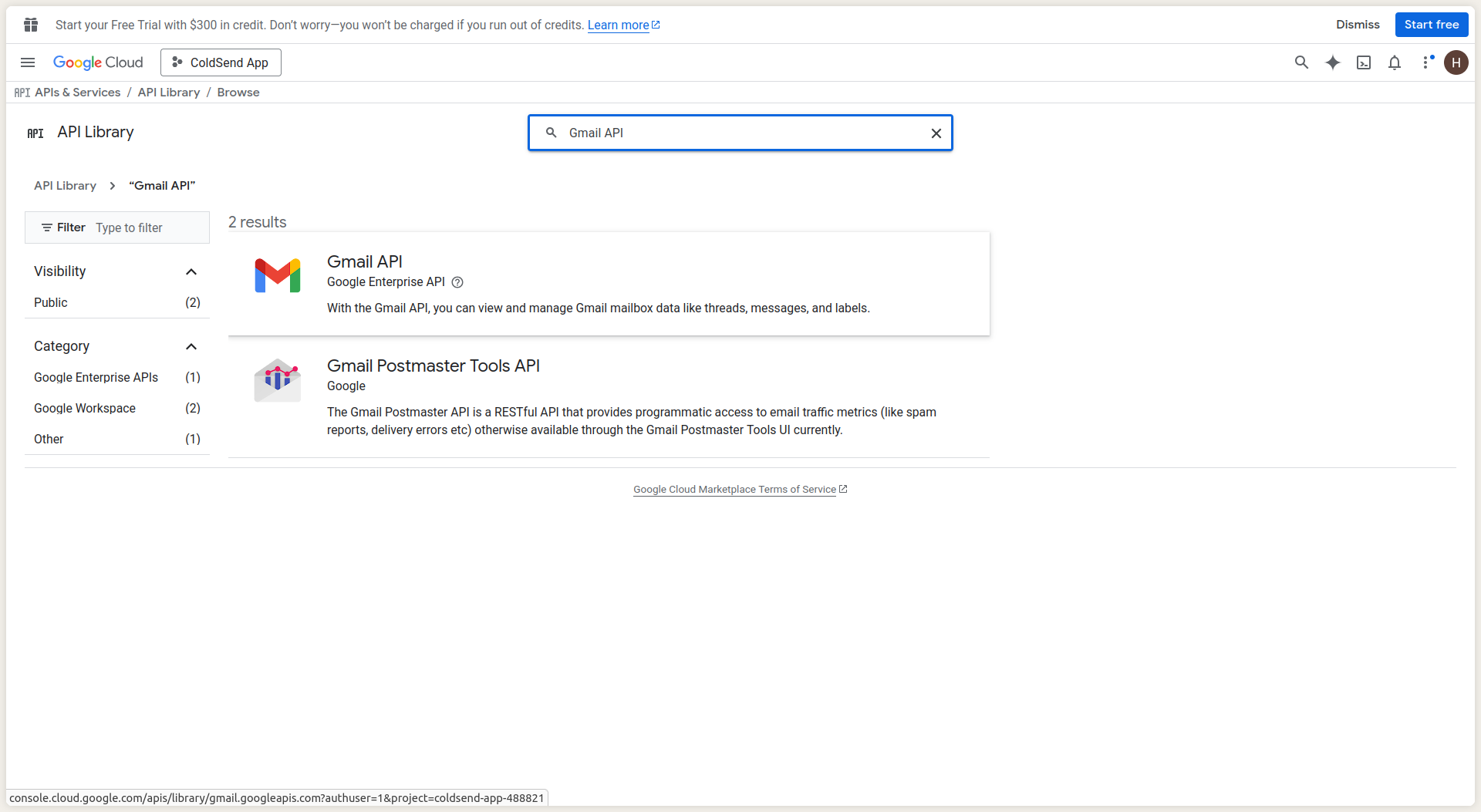
- Inside your new project, go to the left sidebar and click APIs & Services > Library.
- In the search bar, type
Gmail API. - Click on Gmail API.
- Click Enable.
Step 3: Configure the OAuth Consent Screen
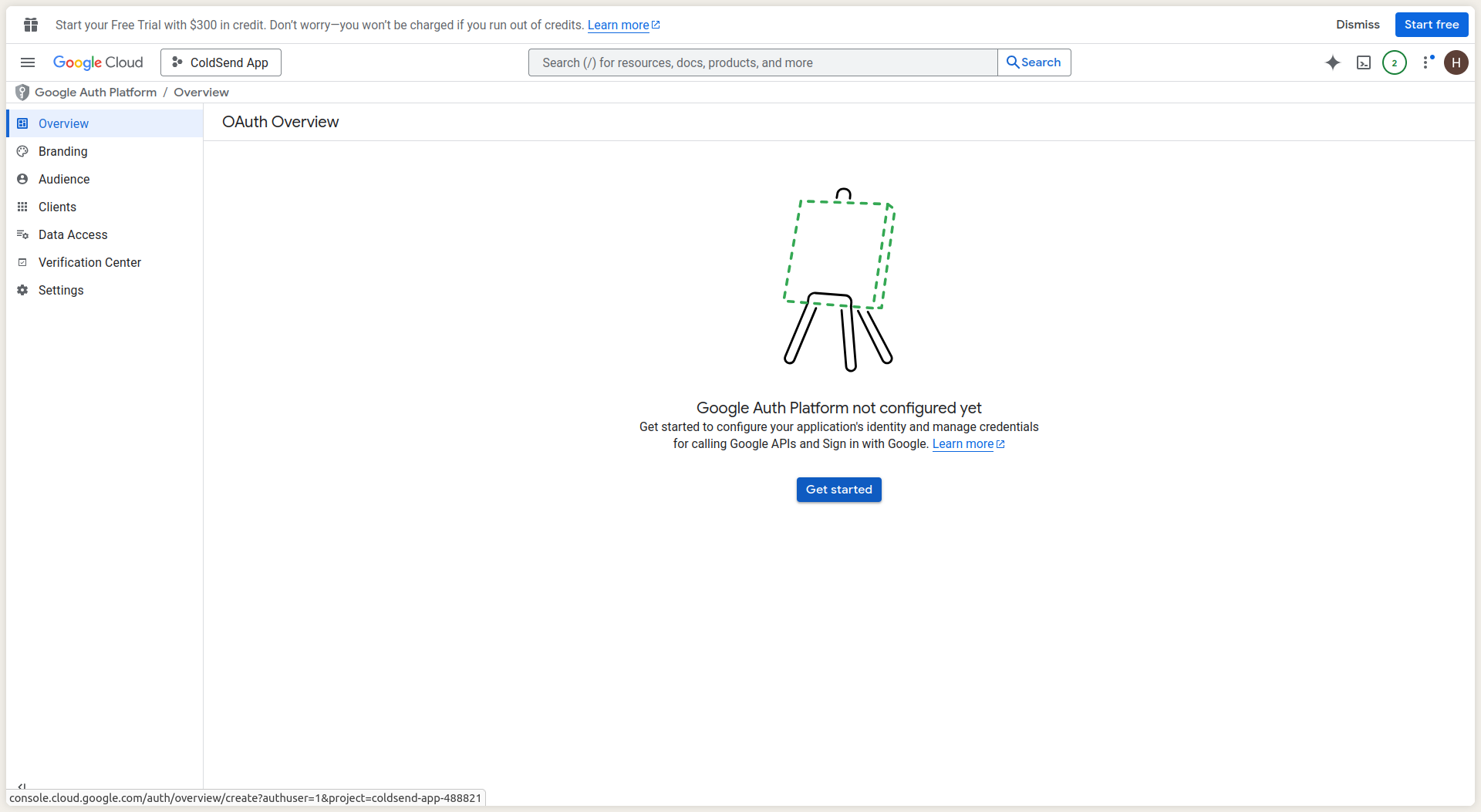
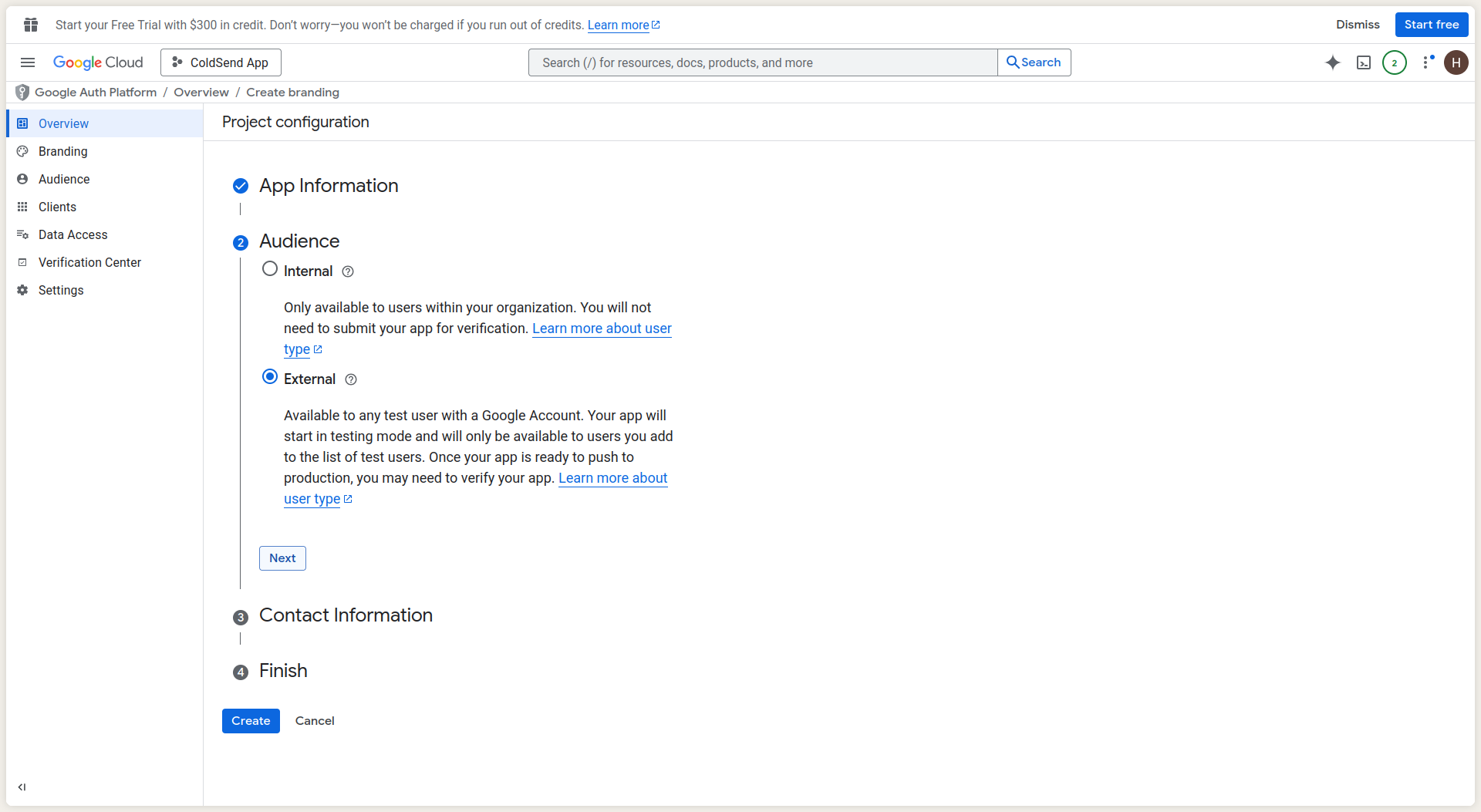
Go to APIs & Services > OAuth consent screen, and click on Get Started button.
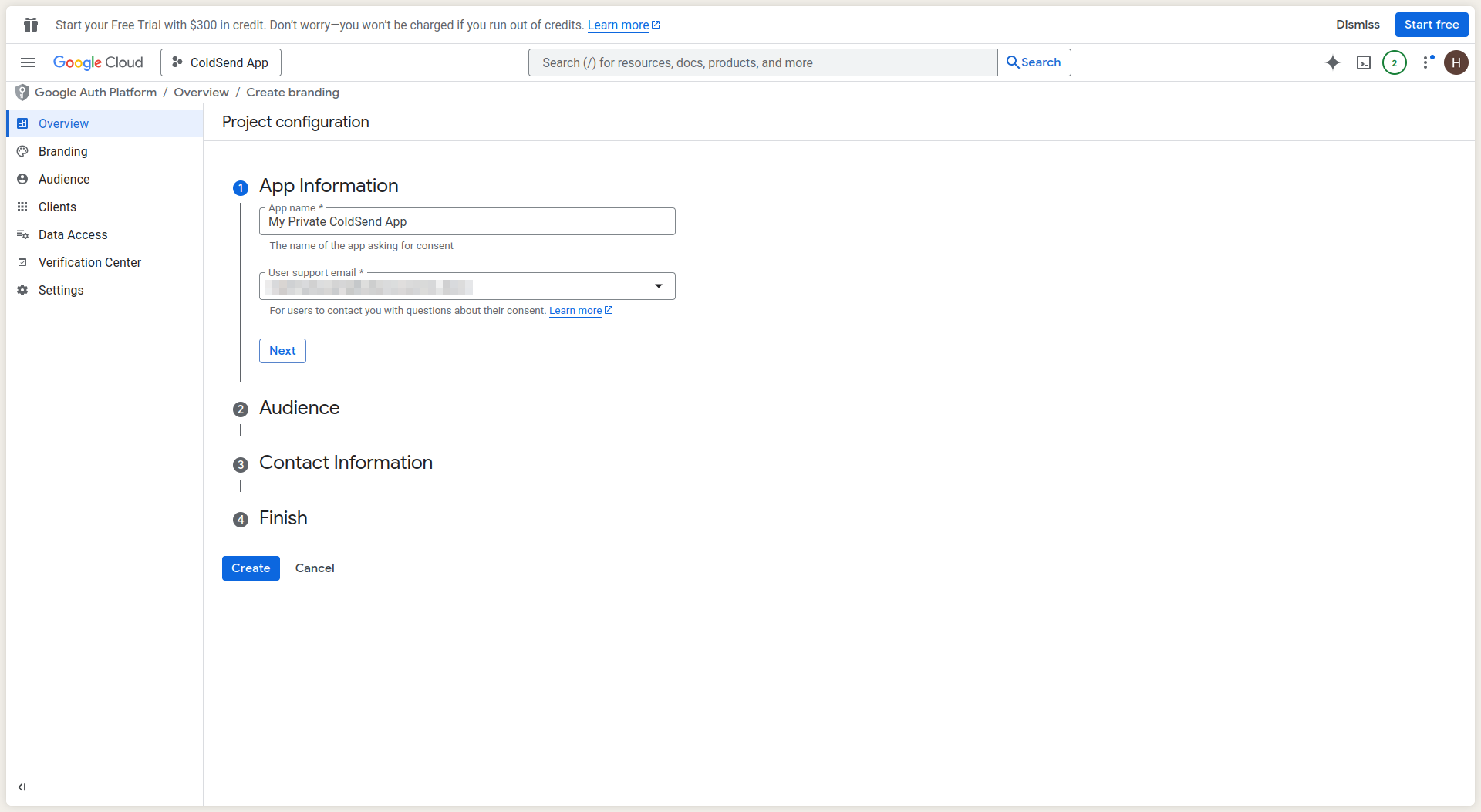
Fill your details in the App Information Section and click on continue.
In the audience type, Choose External for User Type and click Create. External type allows users other than the ones in your organization to login with your app, you can choose internal if you want to restrict access within your organization. In case of External users, you will have to get your app verified by Google later, which is beyond the scope of this guide.
Fill the contact details in the next 2 sections and click create.
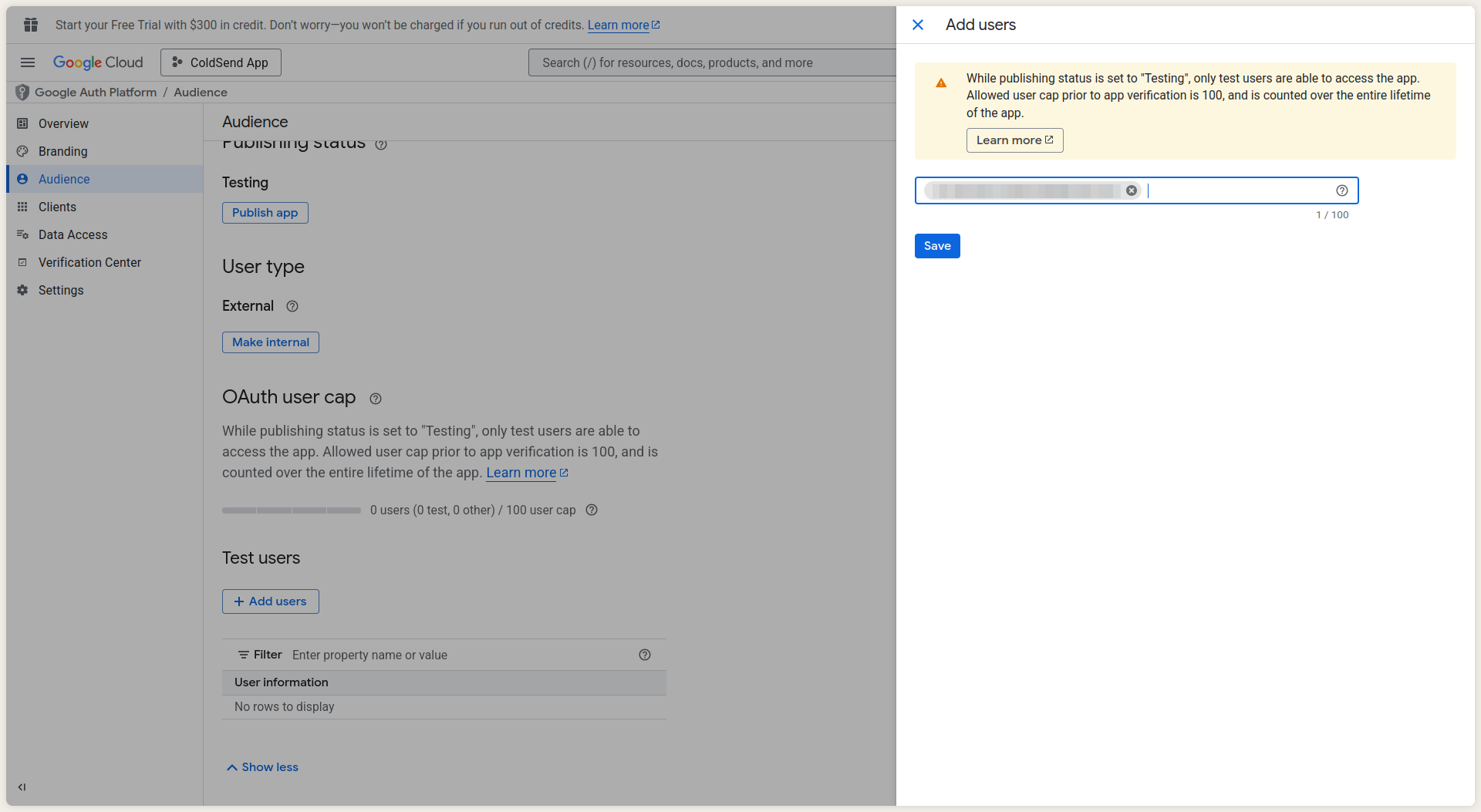
In the left sidebar, choose audience and add emails for test user. This will allow you to test your OAuth app with these emails, even when your app has not been verified by google.
Step 4: Create Credentials (Client ID & Secret)
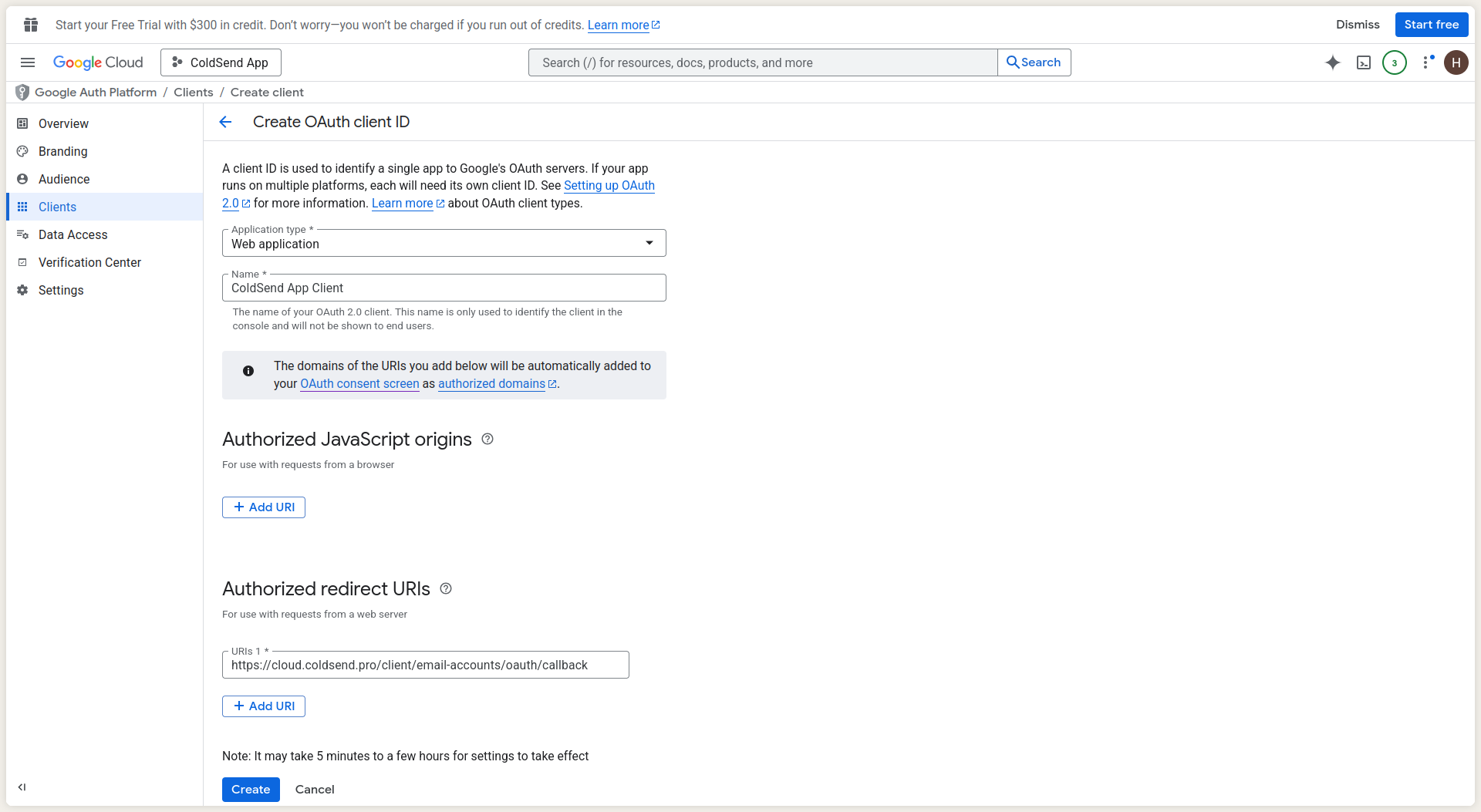
- In the left sidebar, click on Clients tab.
- Click Create Client at the top.
- Choose Web application as the Application type.
- Name: Give it a recognizable name (e.g.,
ColdSend Web Client). - Under Authorized JavaScript origins, you can add:
https://cloud.coldsend.pro
- Under Authorized redirect URIs, add the ColdSend callback URL:
https://cloud.coldsend.pro/client/email-accounts/oauth/callback
- Click Create.
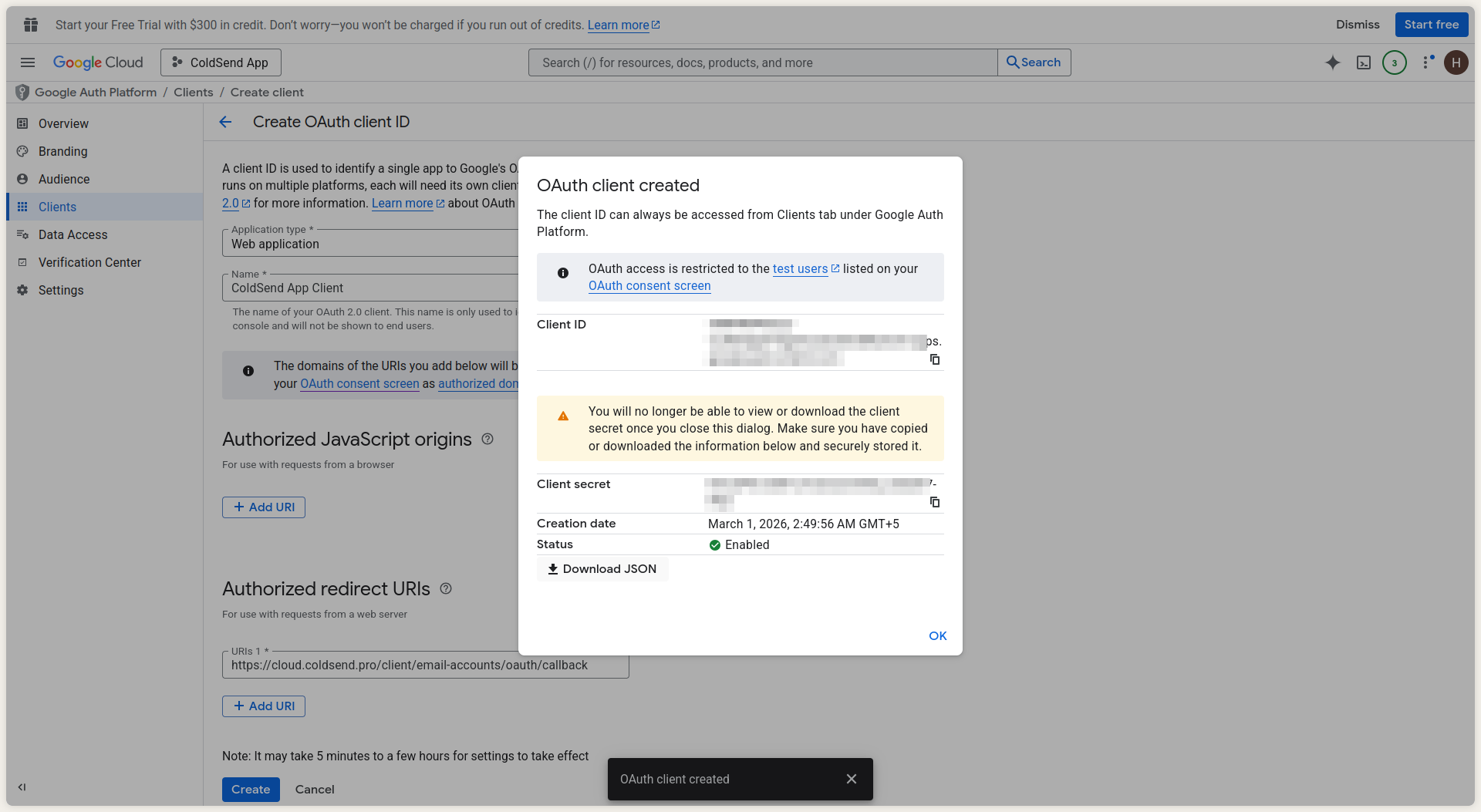
- A modal will pop up with your Client ID and Client Secret. Download or copy these you will need them in ColdSend.
Step 5: Add Required Scopes
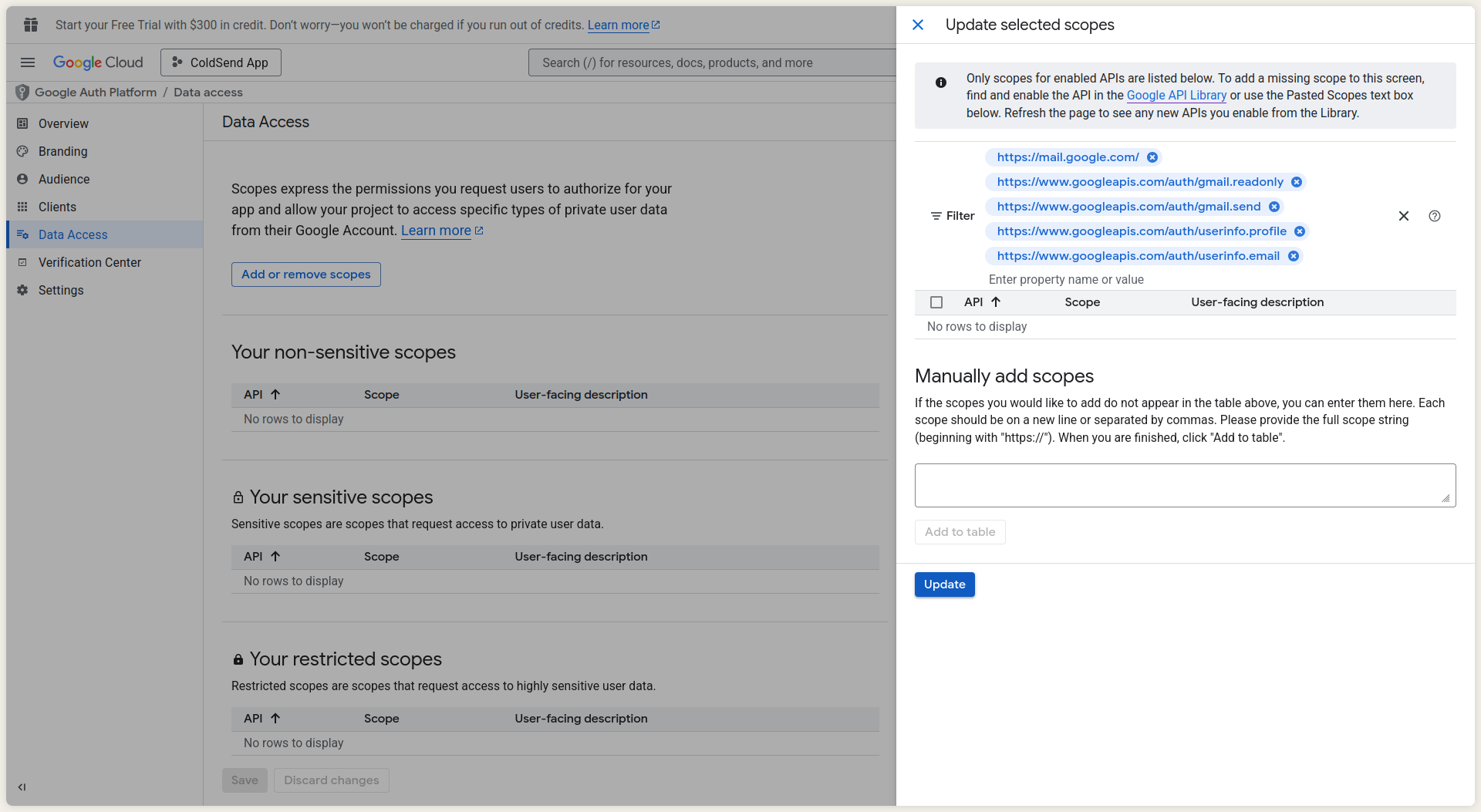
- On the left sidebar, navigate to the Data Access section and click Add or Remove Scopes.
- Add the following scopes to ensure full functionality:
https://mail.google.com/https://www.googleapis.com/auth/gmail.sendhttps://www.googleapis.com/auth/gmail.readonlyhttps://www.googleapis.com/auth/userinfo.emailhttps://www.googleapis.com/auth/userinfo.profile
- Click Save and Continue.
Step 6: Add Credentials in ColdSend
- Log into your ColdSend account.
- In the left sidebar, navigate to Sender Accounts.
- Click on Create Email Account Dropdown and choose Google Workspace.
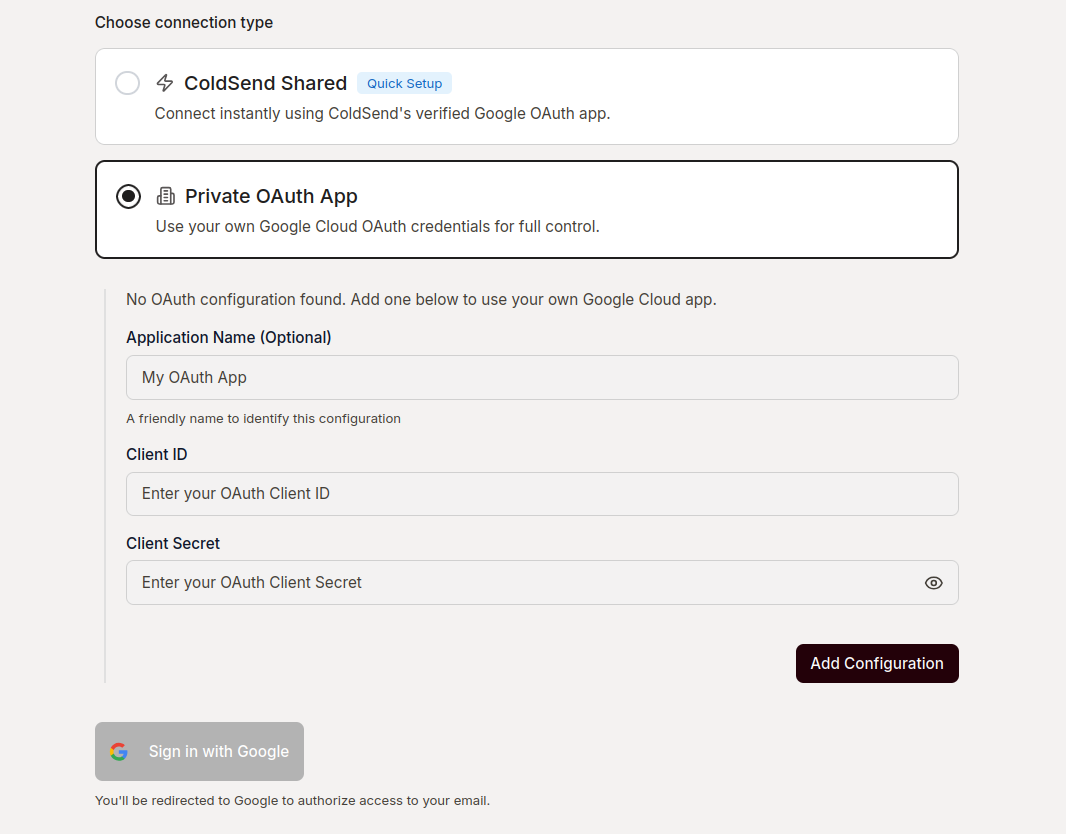
- Select Private Oauth App and Paste your:
- Client ID
- Client Secret
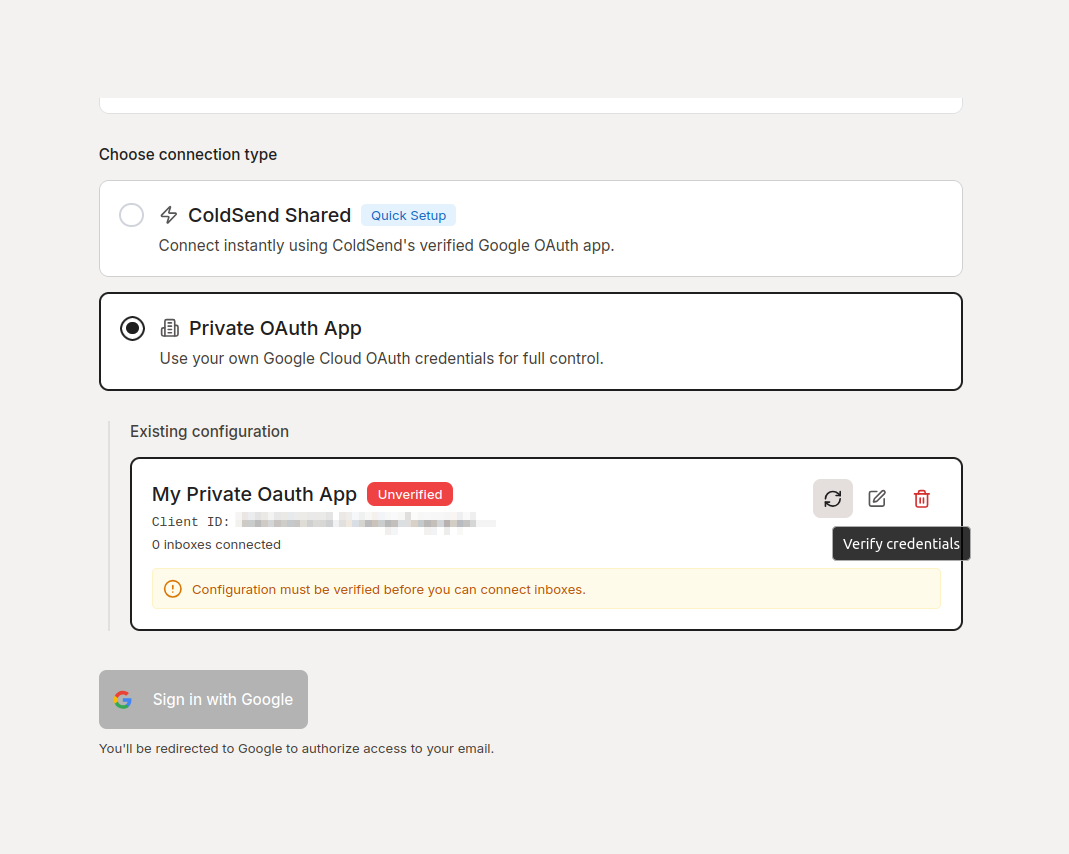
- Click Add Configuration.
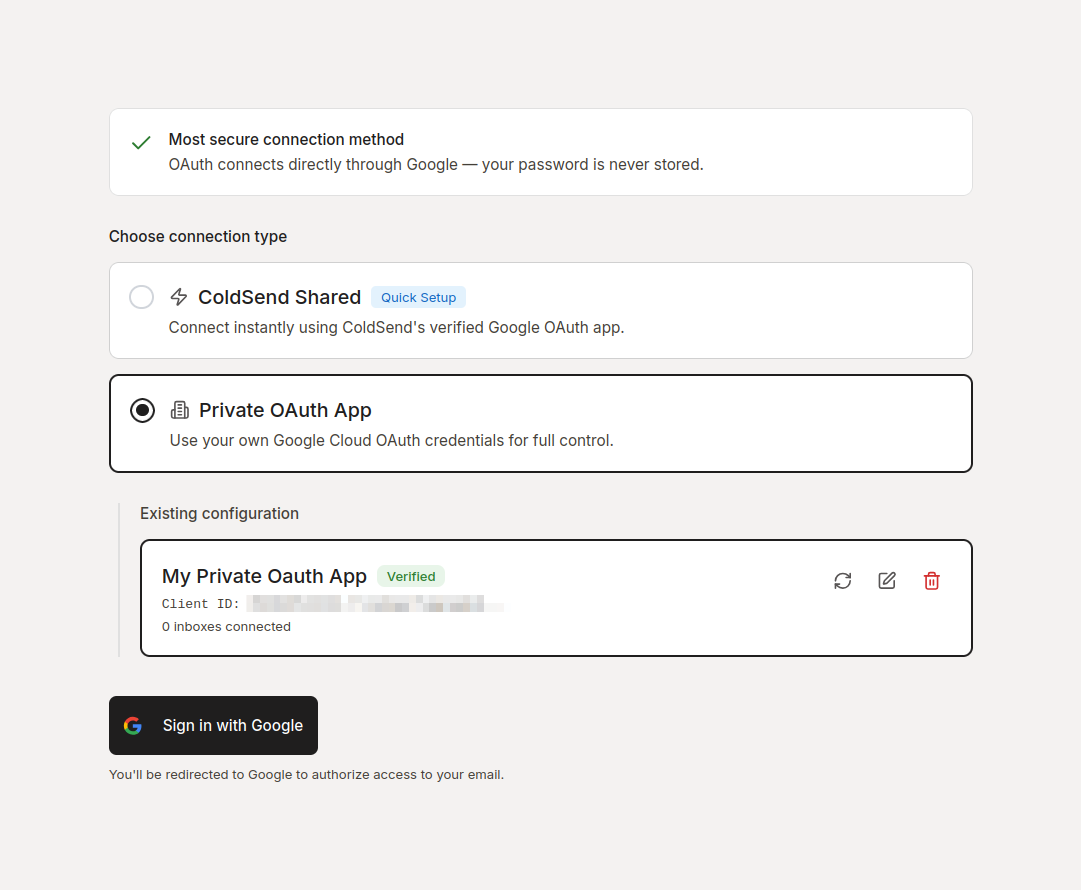
- Click on the Verify Credentials icon, and ensure your app is verified.
Step 7: Connect Mailboxes Using Your OAuth
- Go to Email Accounts and click Add Account.
- Select Google Workspace.
- Under the connection options, ensure you select your newly created OAuth Configuration instead of the shared option.
- Complete the sign-in flow. Your mailbox is now connected using your own OAuth app!
FAQs
Can I switch back to ColdSend's shared OAuth?
Yes, you can remove or deactivate your custom provider in your Team OAuth Configuration settings and reconnect mailboxes using ColdSend's default app.
Does ColdSend store my Google Client Secret?
Your client secret is securely stored encrypted to manage your team's OAuth authentication flow for token refreshes, but it is heavily protected and never exposed in the UI.
 1 min read
 Apr 23, 2026