
Legacy guide. New ColdSend accounts don't need this — infrastructure is assigned automatically when you sign up, so there's nothing to set up. This guide is only for connecting an existing Azure account you already operate. See the help center if you're a new user.
You need to add the following fields:
- Account Name - A friendly name for the account
- Tenant ID (Directory ID) - The Azure AD tenant identifier
- Client ID (Application ID) - the App Registration's application ID
- Client Secret - A secret key for authentication
Here's a guide on how to obtain these values:
Azure Service Principal Credentials Guide
This guide will walk you through obtaining the required credentials to connect your Azure account to ColdSend.
Prerequisites
- An active Azure subscription
- Access to the Azure Portal with permissions to create App Registrations
Step 1: Get Your Tenant ID
The Tenant ID (also called Directory ID) identifies your Azure Active Directory.
Go to Azure Portal
Navigate to Microsoft Entra ID (or Azure Active Directory)
Click Overview in the left sidebar
Copy the Tenant ID (a GUID like
xxxxxxxx-xxxx-xxxx-xxxx-xxxxxxxxxxxx)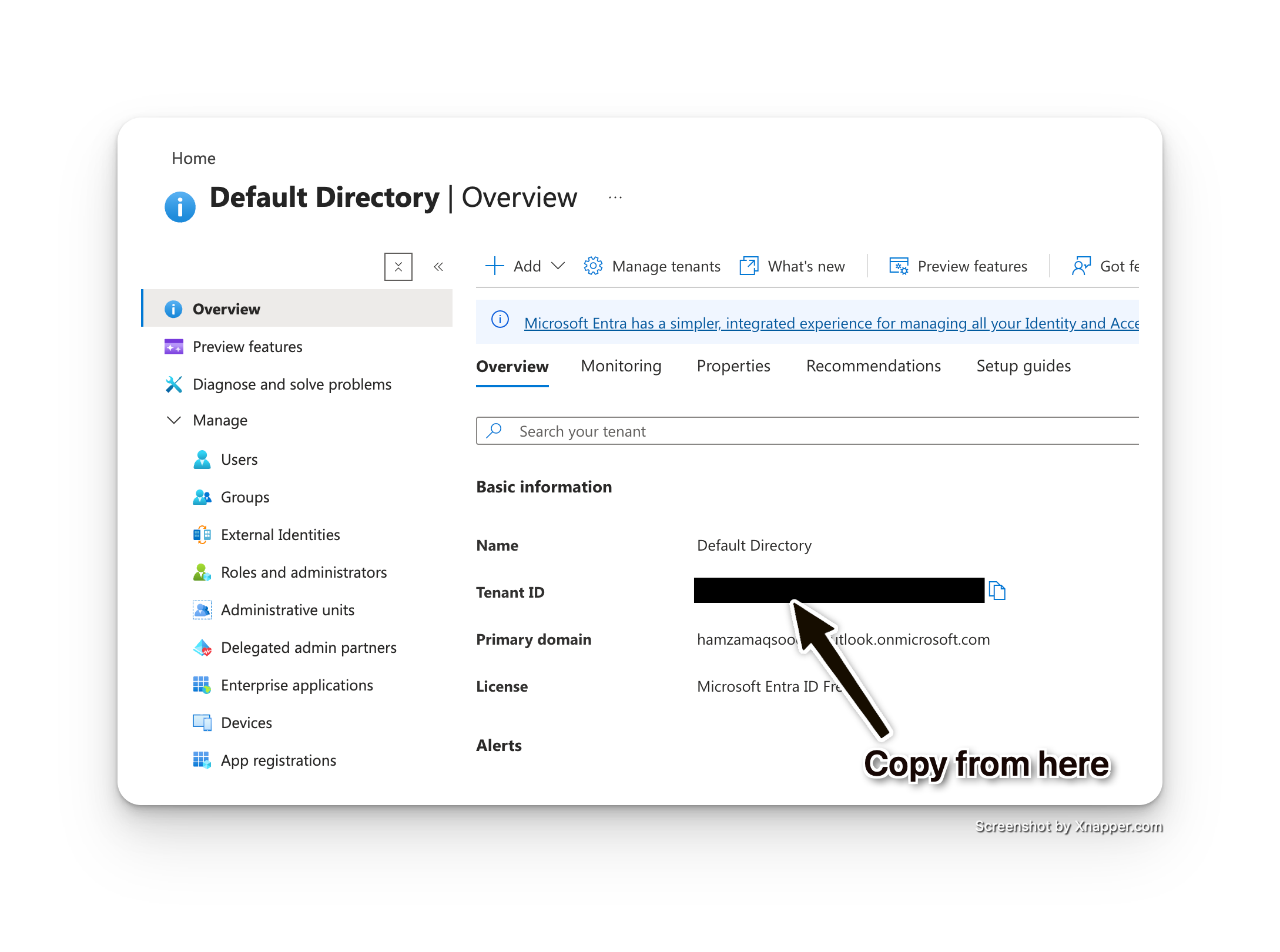
Step 2: Register an Application
To get the Client ID and create a Client Secret, you need to register an application:
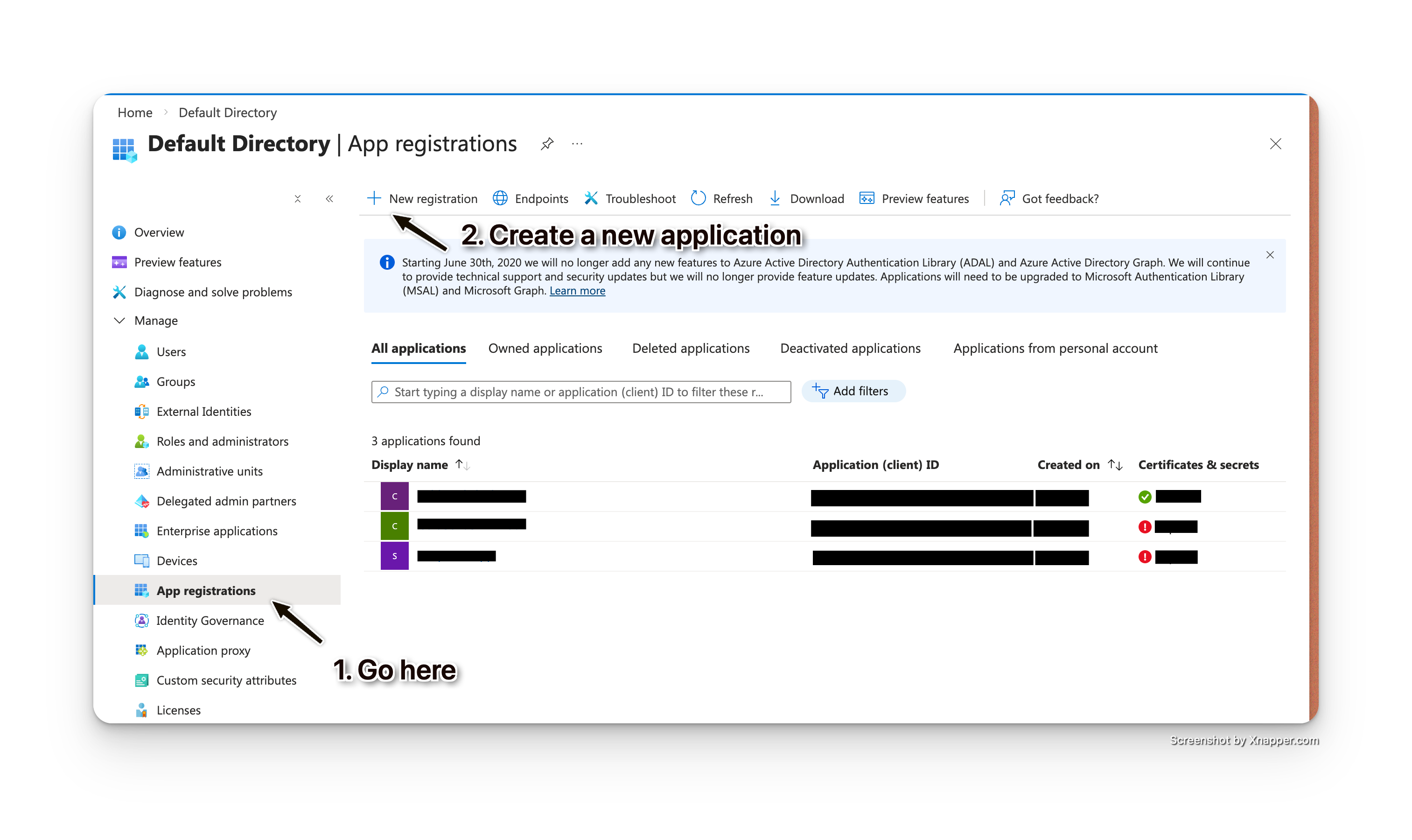
- In Azure Portal, go to Microsoft Entra ID
- Click App registrations in the left sidebar
- Click + New registration
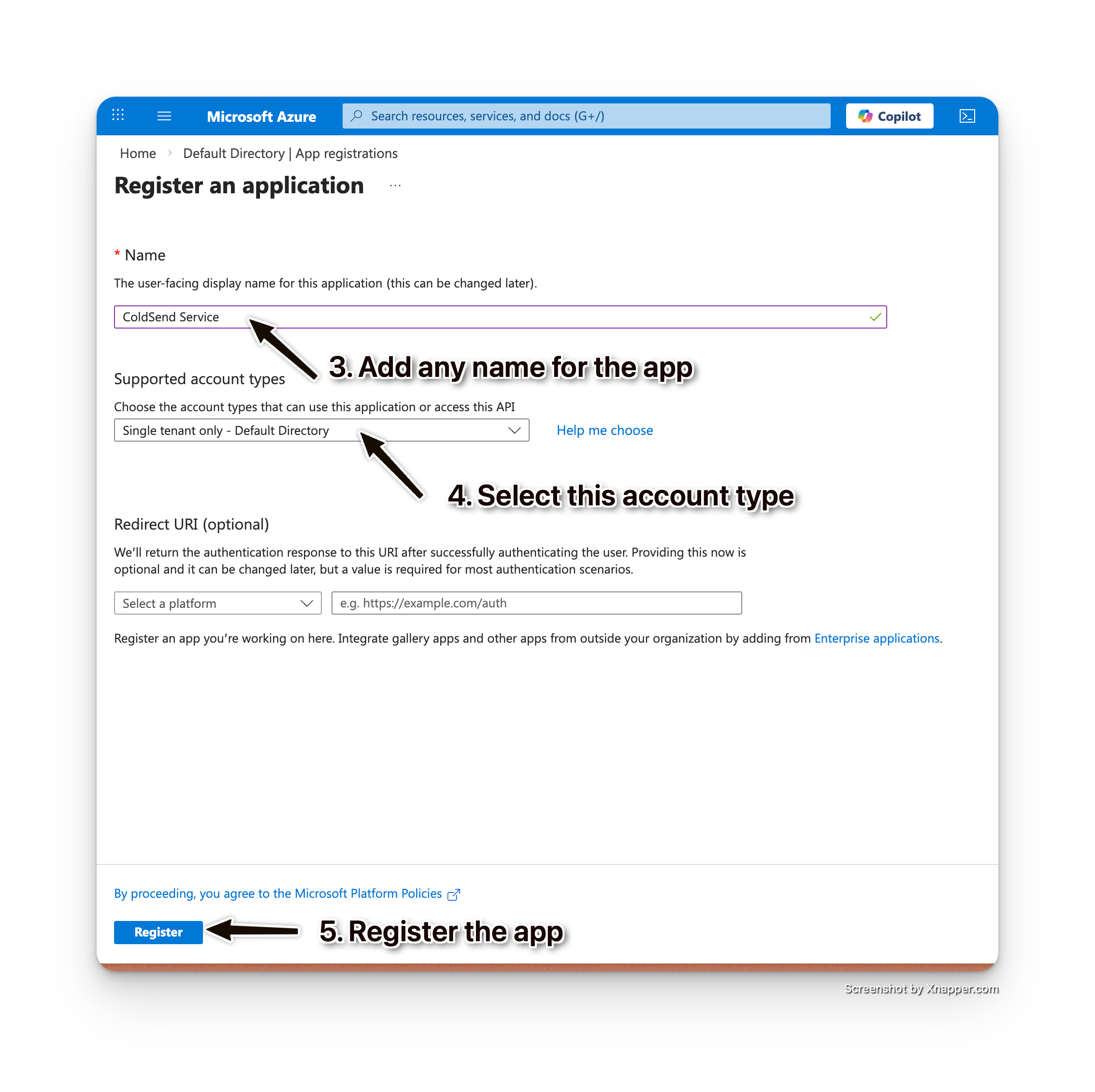
- Enter a Name (e.g., "ColdSend Service")
- Under Supported account types, select:
- Accounts in this organizational directory only (Single tenant)
- Click Register
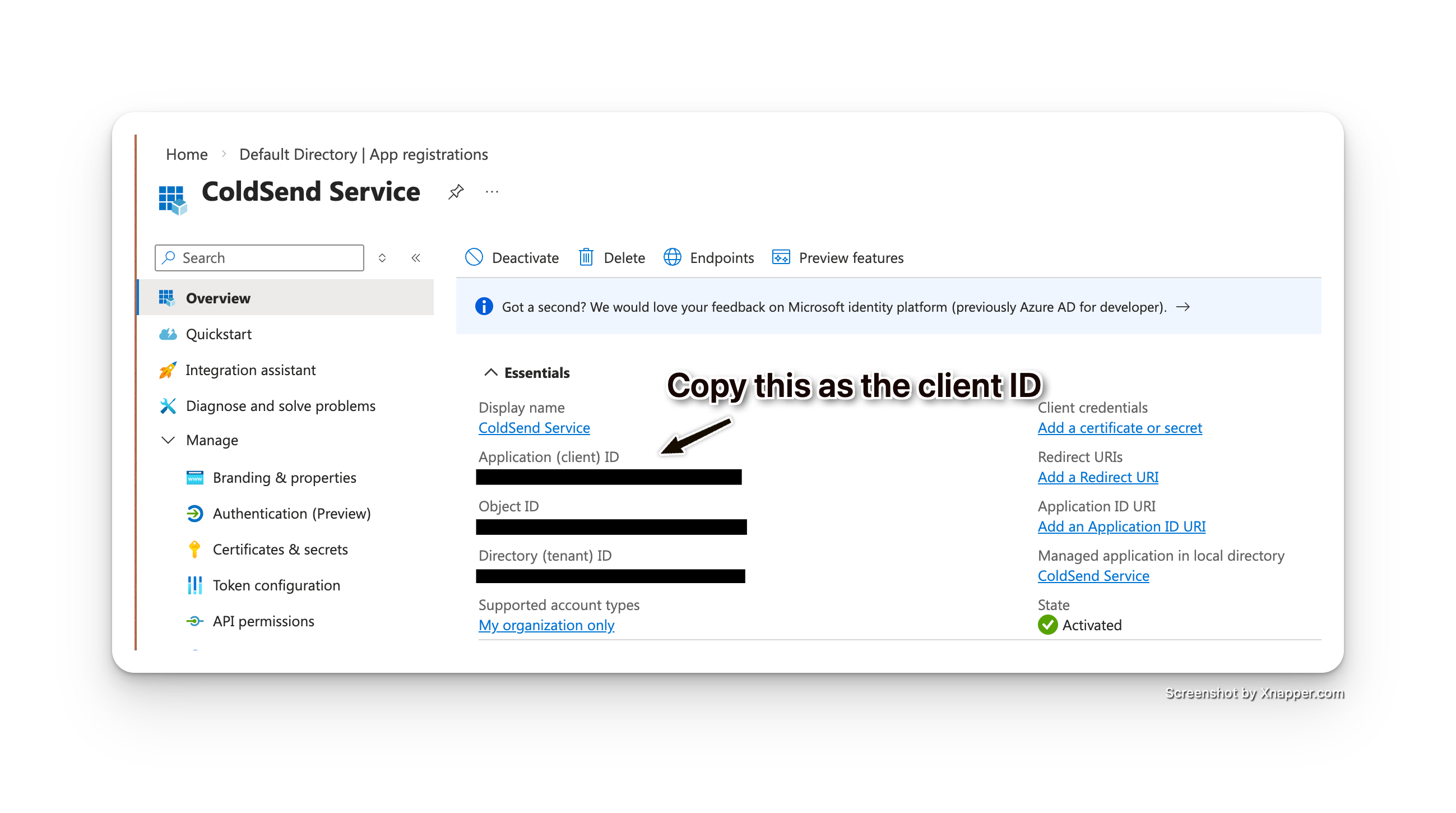
Copy the Client ID
After registration, you'll see the Overview page:
- Copy the Application (client) ID — this is your Client ID
Step 3: Create a Client Secret
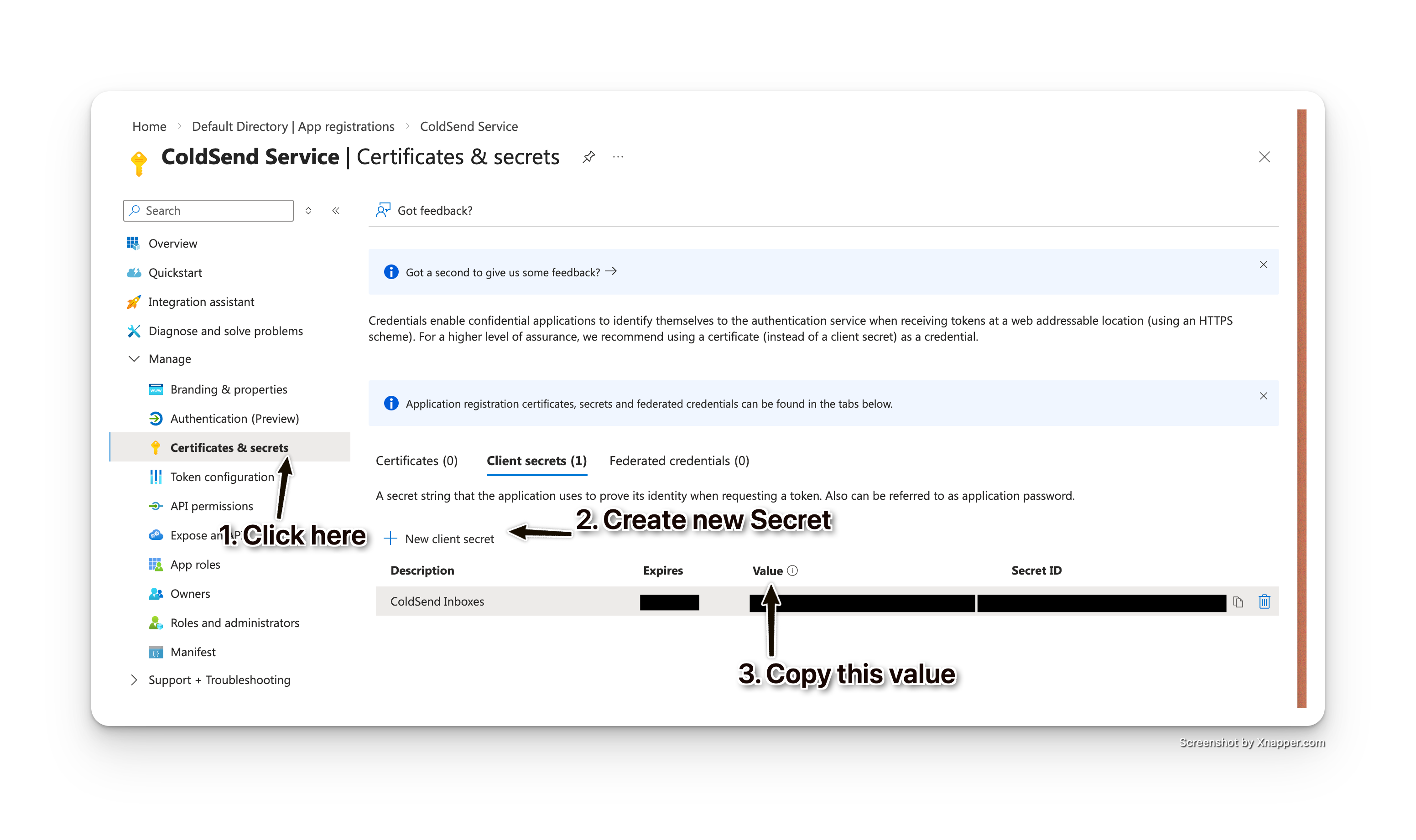
In your App registration, click Certificates & secrets in the left sidebar
Click + New client secret
Add a Description (e.g., "ColdSend Inboxes")
Select an Expires duration:
- Recommended: 24 months (you'll need to rotate this before it expires)
Click Add
Immediately copy the secret value — it will only be shown once!
⚠️ Important: Store this secret securely. If you lose it, you'll need to create a new one.
Step 4: Assign Required Permissions
Your service principal needs permissions to manage Azure Communication Services:
Add API Permissions
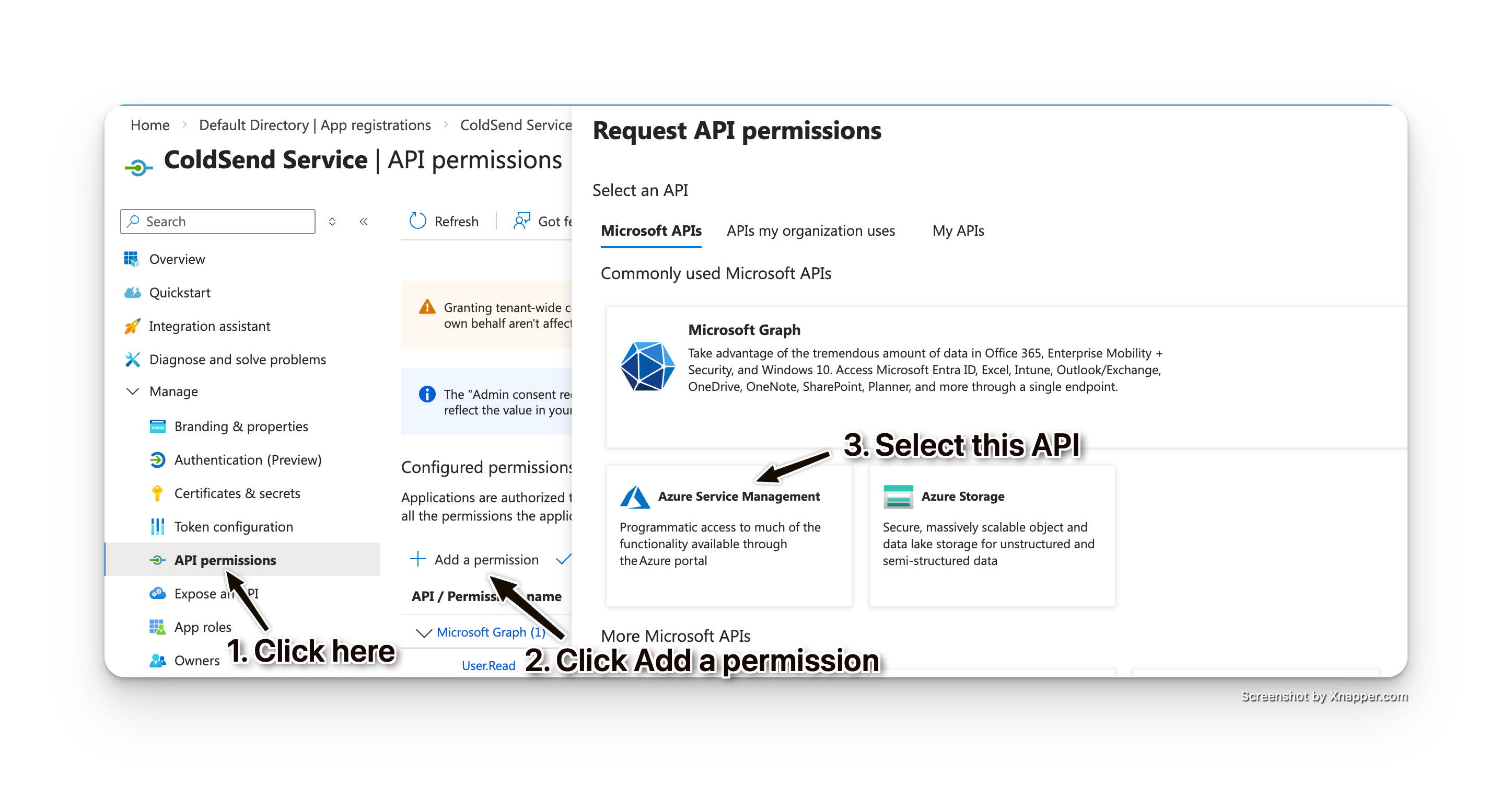
In your App registration, click API permissions
Click + Add a permission
Select Azure Service Management
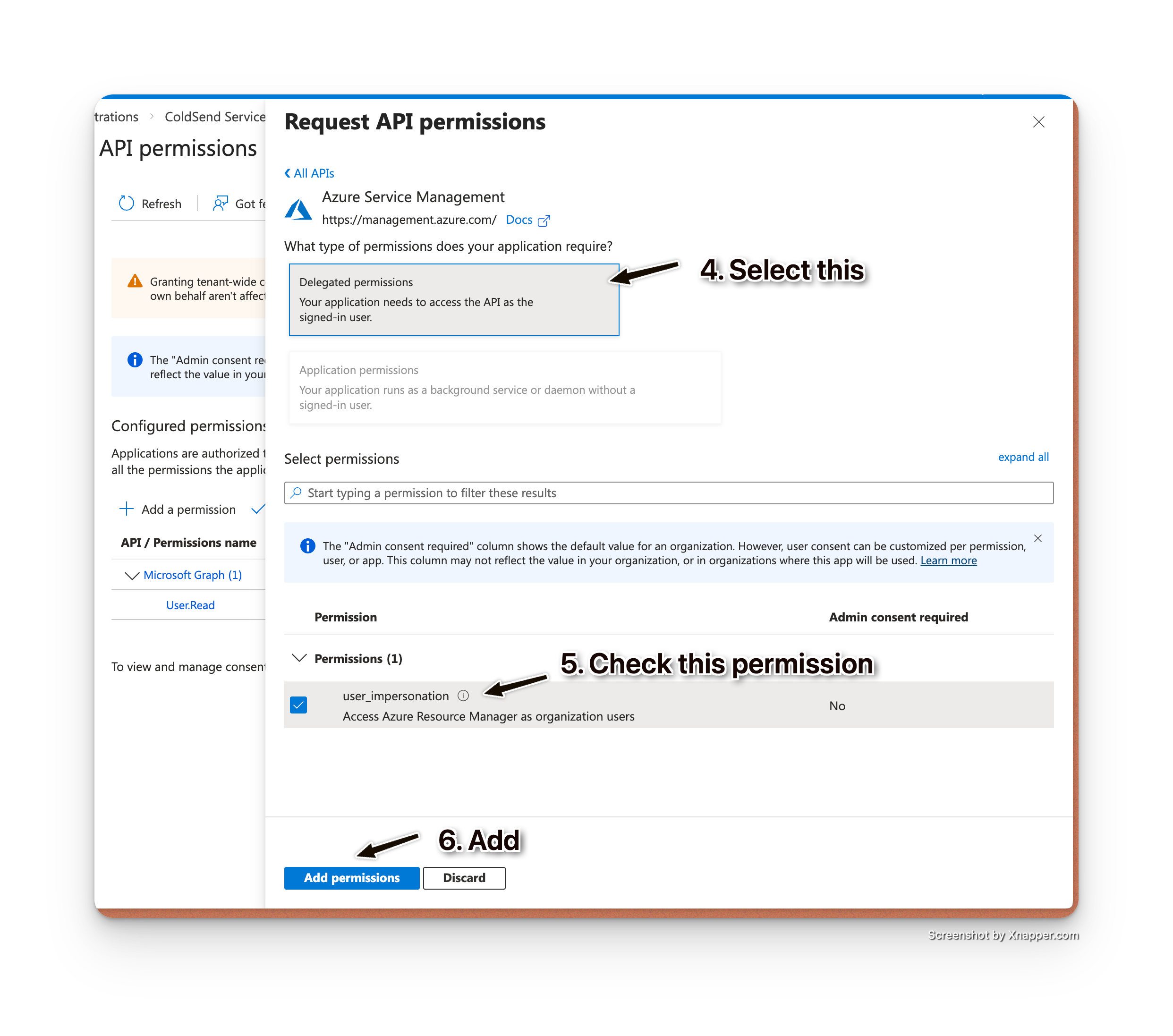
Select Delegated permissions
Check user_impersonation
Click Add permissions
Assign Role to Subscription
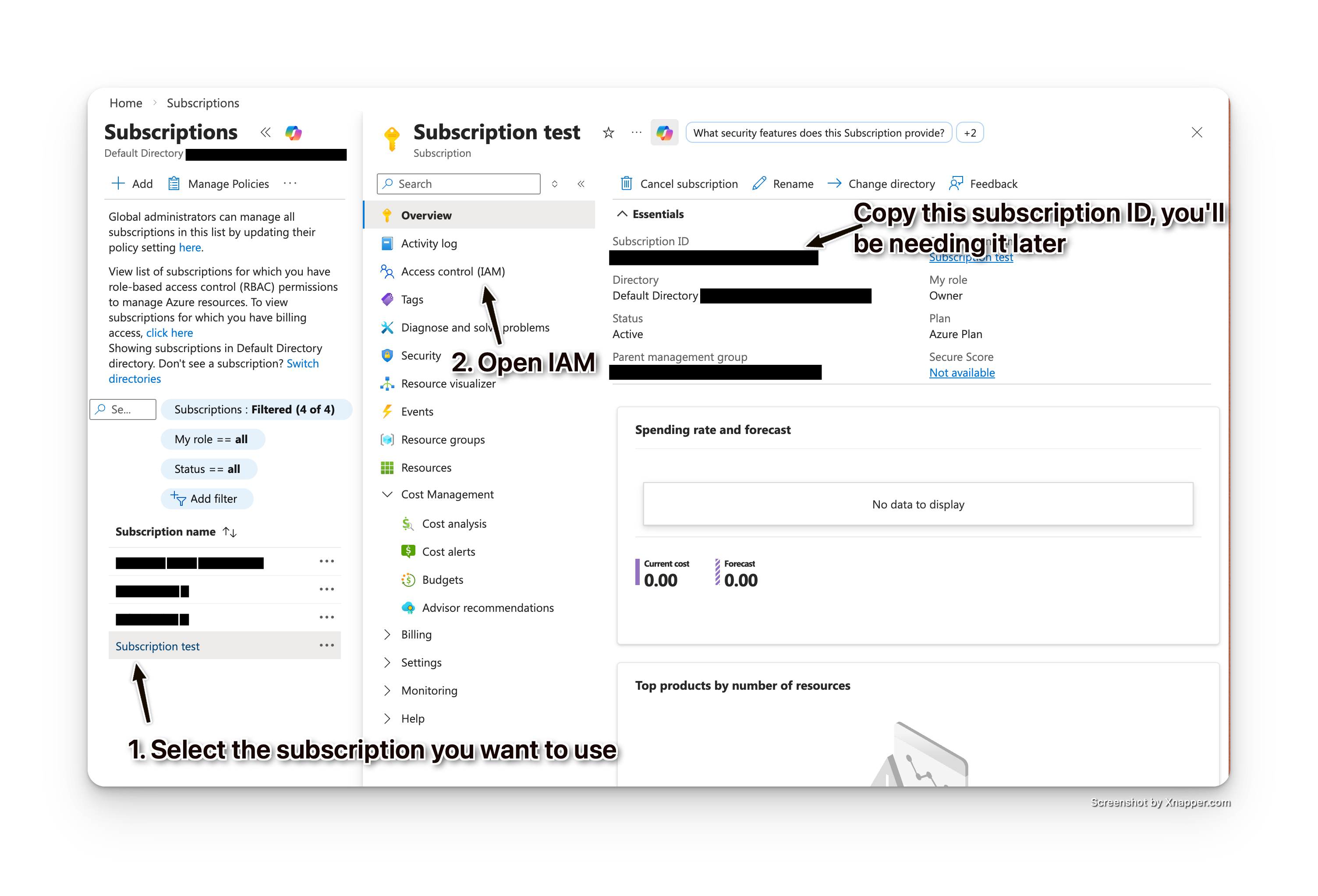
Go to Azure Portal → Subscriptions
Select the subscription you want to use
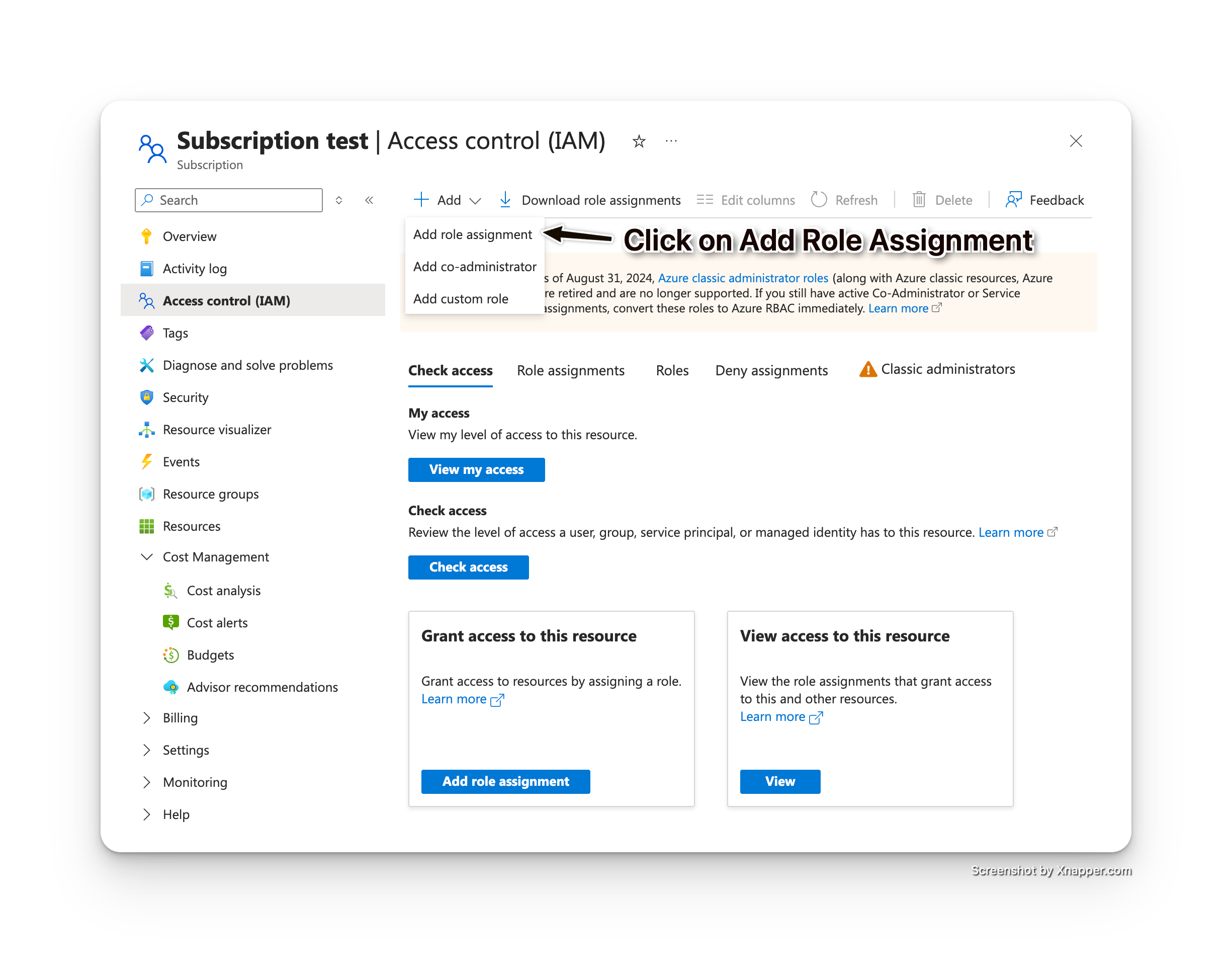
Click Access control (IAM) in the left sidebar
Click + Add → Add role assignment
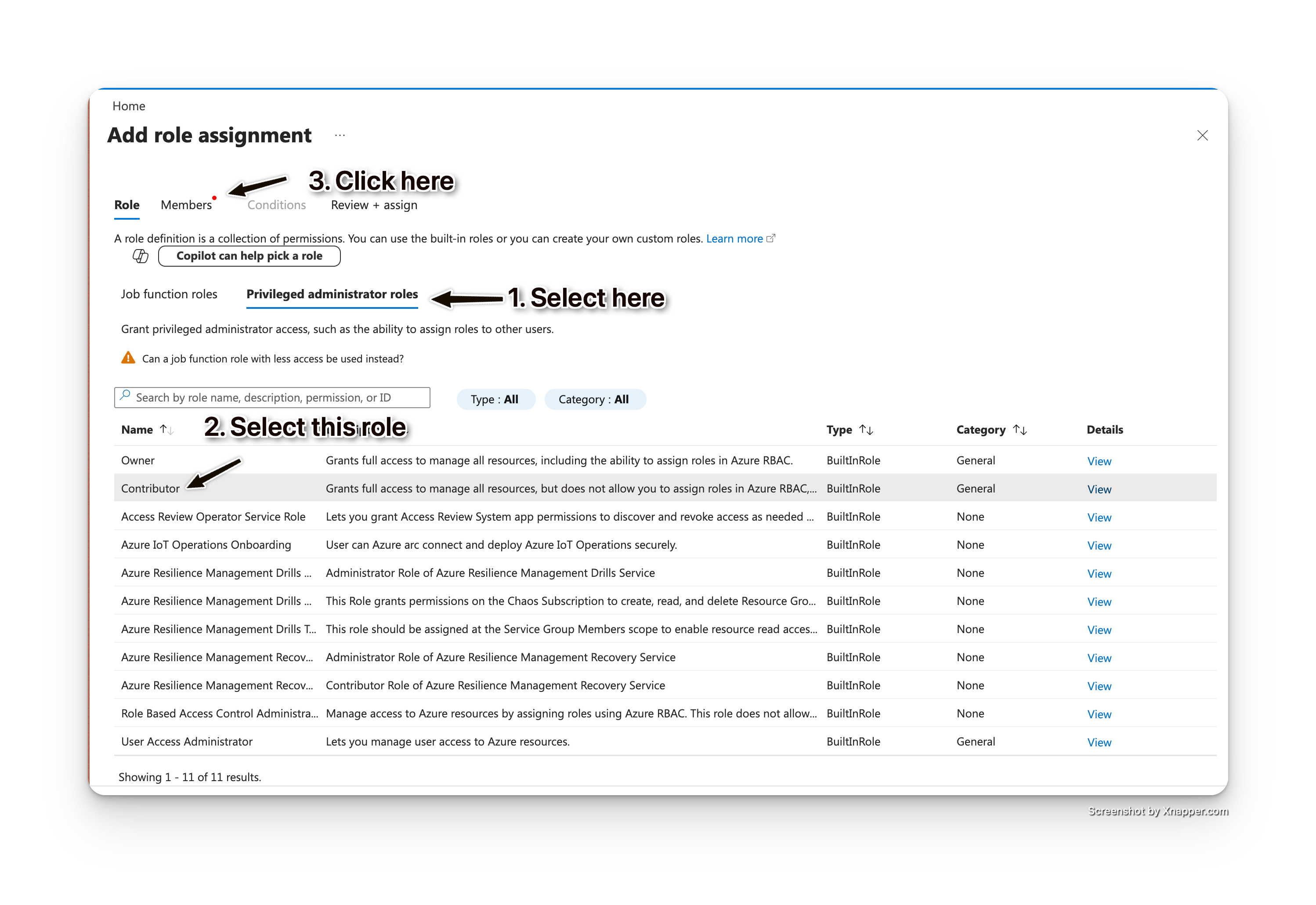
Select the Contributor role
Click Next
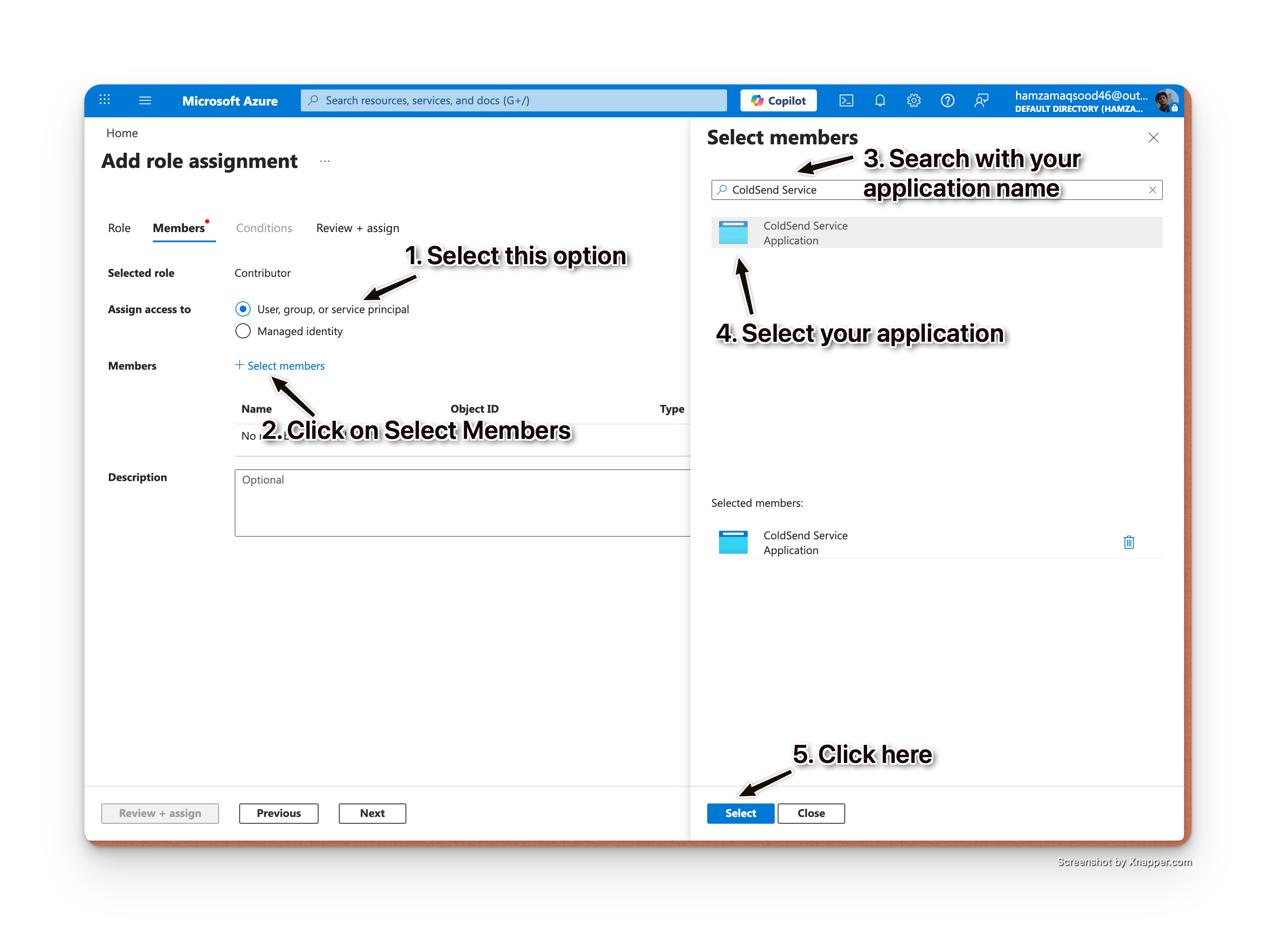
Under Assign access to, select User, group, or service principal
Click + Select members
Search for your app registration name (e.g., "ColdSend Service")
Select it and click Review + assign
Step 5: Get Your Subscription ID
- In Azure Portal, go to Subscriptions
- Select the subscription you assigned the role to
- Copy the Subscription ID (a GUID)
Step 6: Enable Communication Services(Sometimes this service is not enabled by default)
- Go to Azure Portal → Subscriptions
- Select your subscription
- Click Resource providers in the left sidebar (under Settings)
- Search for Microsoft.Communication
- If it's not registered, select it and click Register
Enter Credentials in ColdSend
Go to Email Accounts → Infrastructure tab and enter:
| Field | Value |
|---|---|
| Account Name | Any friendly name (e.g., "Production Azure") |
| Tenant ID | Your Directory/Tenant ID |
| Client ID | Your Application (client) ID |
| Client Secret | The secret value you copied |
| Subscription ID | Your Azure Subscription ID (added separately) |
After entering credentials, click Verify to confirm everything is working correctly.
Troubleshooting
| Issue | Solution |
|---|---|
| "Authentication failed" | Double-check all IDs are copied correctly (no extra spaces) |
| "Insufficient permissions" | Ensure the Contributor role is assigned to your service principal |
| "Subscription not found" | Verify the subscription ID and that the service principal has access |
Security Best Practices
- Rotate secrets regularly: Set a calendar reminder before the secret expires
- Monitor usage: We store your azure keys in encrypted format and don't use it for any purposes other than setting up your domains and your inboxes.
 1 min read
 Apr 23, 2026